

Passkeys, simply explained
How you sign in to TerraVault without a password.
What a passkey is
A passkey is a secret key stored safely on your phone or computer. When you sign in, your device asks you to unlock it (fingerprint, face, PIN or pattern) and then proves to TerraVault that it's really you.
- Your fingerprint or face never leaves your device. TerraVault never sees it.
- Passkeys can't be phished. They only work on the real terra.pentascale.net.
- No fingerprint scanner? No problem. Your phone's PIN or pattern works too.
Add a second passkey (strongly recommended)
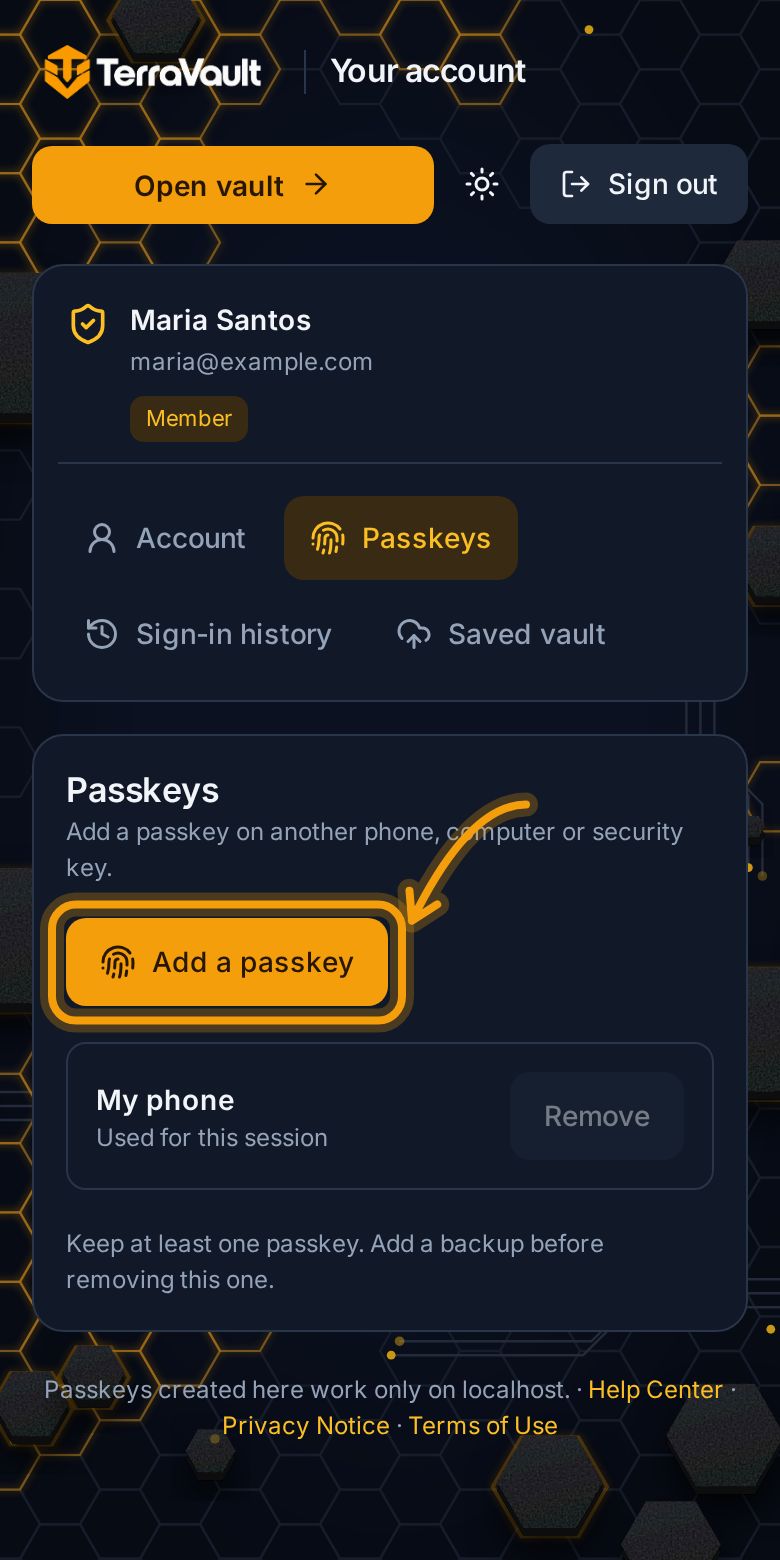
If your only passkey is on your phone and you lose your phone, you can't sign in. Add a second one on another device:
- On the device you're already signed in on, open Settings → Profile & appearance and tap Manage account, passkeys and encrypted copies (or go straight to Passkeys & account in the menu).
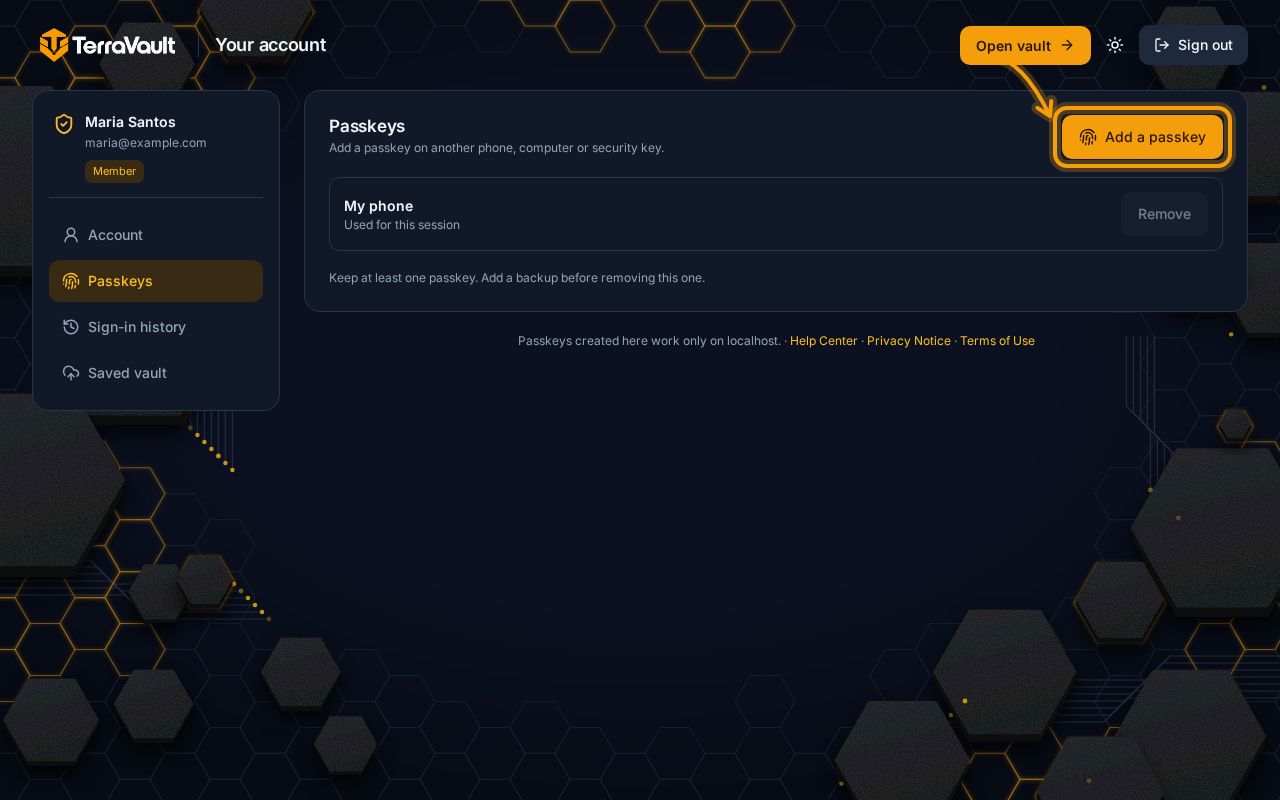
- Open the Passkeys section and tap Add a passkey and give it a name, for example "My laptop".
- Follow the prompt on the new device. To create it on a different phone, choose "Use another device" and scan the QR code.
No Bluetooth, or your passkey won't show up?
Using a phone's passkey on a computer needs Bluetooth on both. Without it, set up an authenticator app: it can sign you in and confirm adding a passkey on that computer.
Samsung Pass or Google Password Manager pops up?
Your phone's password manager may offer to fill in the master password field. If it has nothing to fill, close the pop-up and type your master password, or turn on fingerprint unlock so you don't need to type it.
Removing a passkey
On the account page, tap Remove next to a passkey (for example a phone you sold). You'll confirm with another passkey first. You can never remove your last one.