
Getting started
From your invitation email to your first saved password, in about 5 minutes.
1. Open your invitation
You'll get an email from TerraVault with a Set up my account button. Open it on the phone or computer you use most. The link works once and expires after 24 hours.
2. Create your passkey
Type your name and a name for this device (for example "My phone"), then tap Create my passkey. Your phone asks for your fingerprint, face, PIN or pattern, the same way you unlock it.
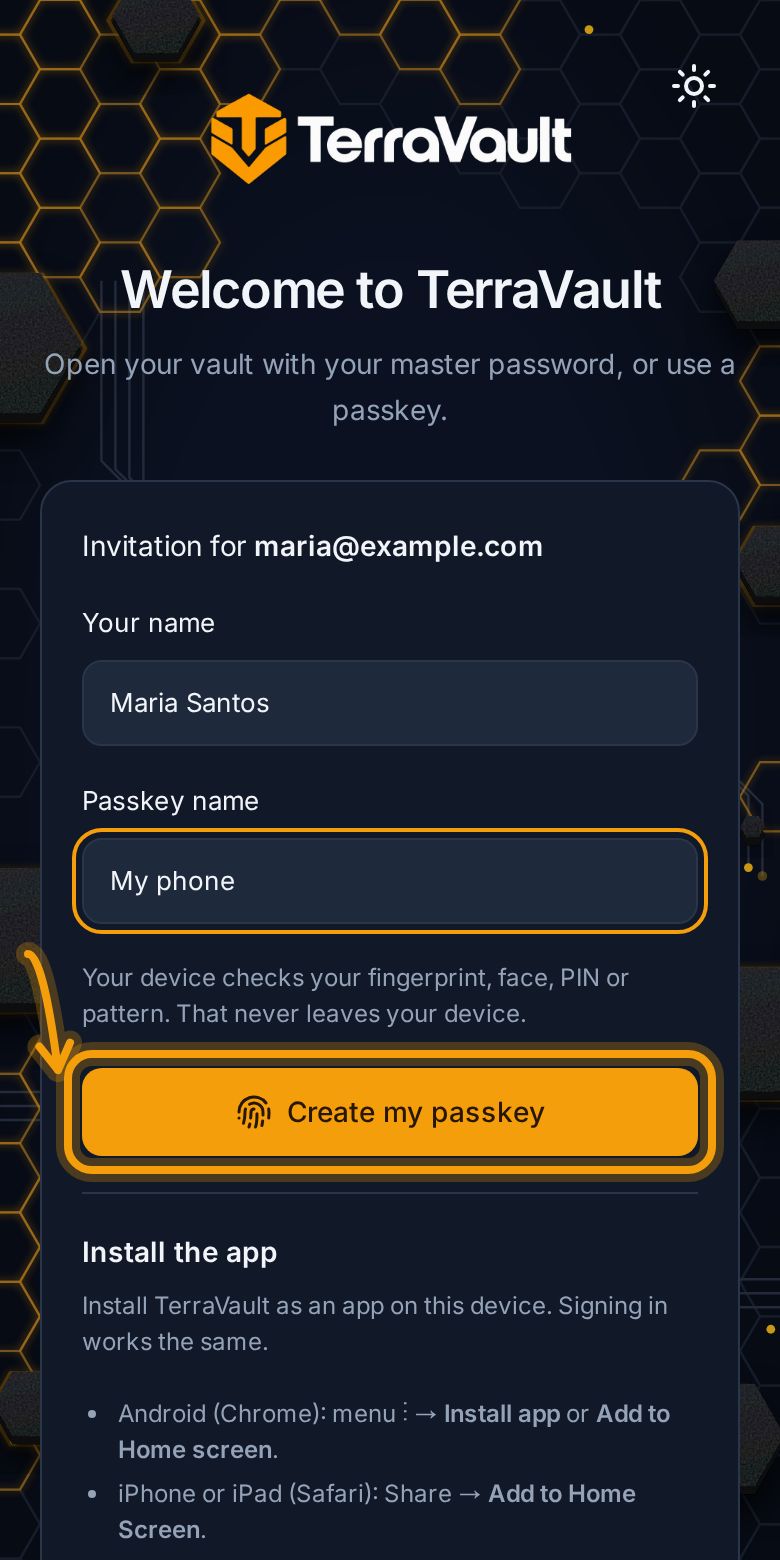
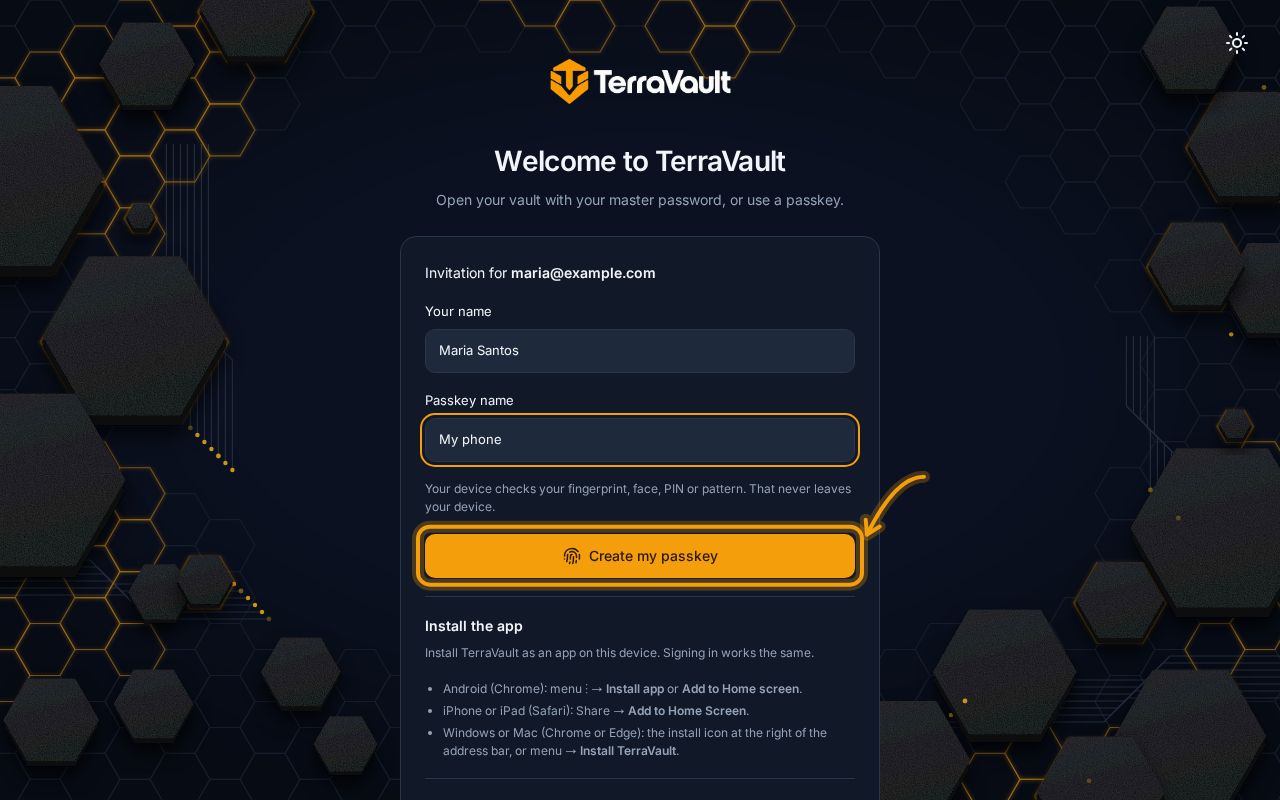
A passkey is how you sign in to TerraVault. There's no password to type, and your fingerprint never leaves your phone. More about passkeys.
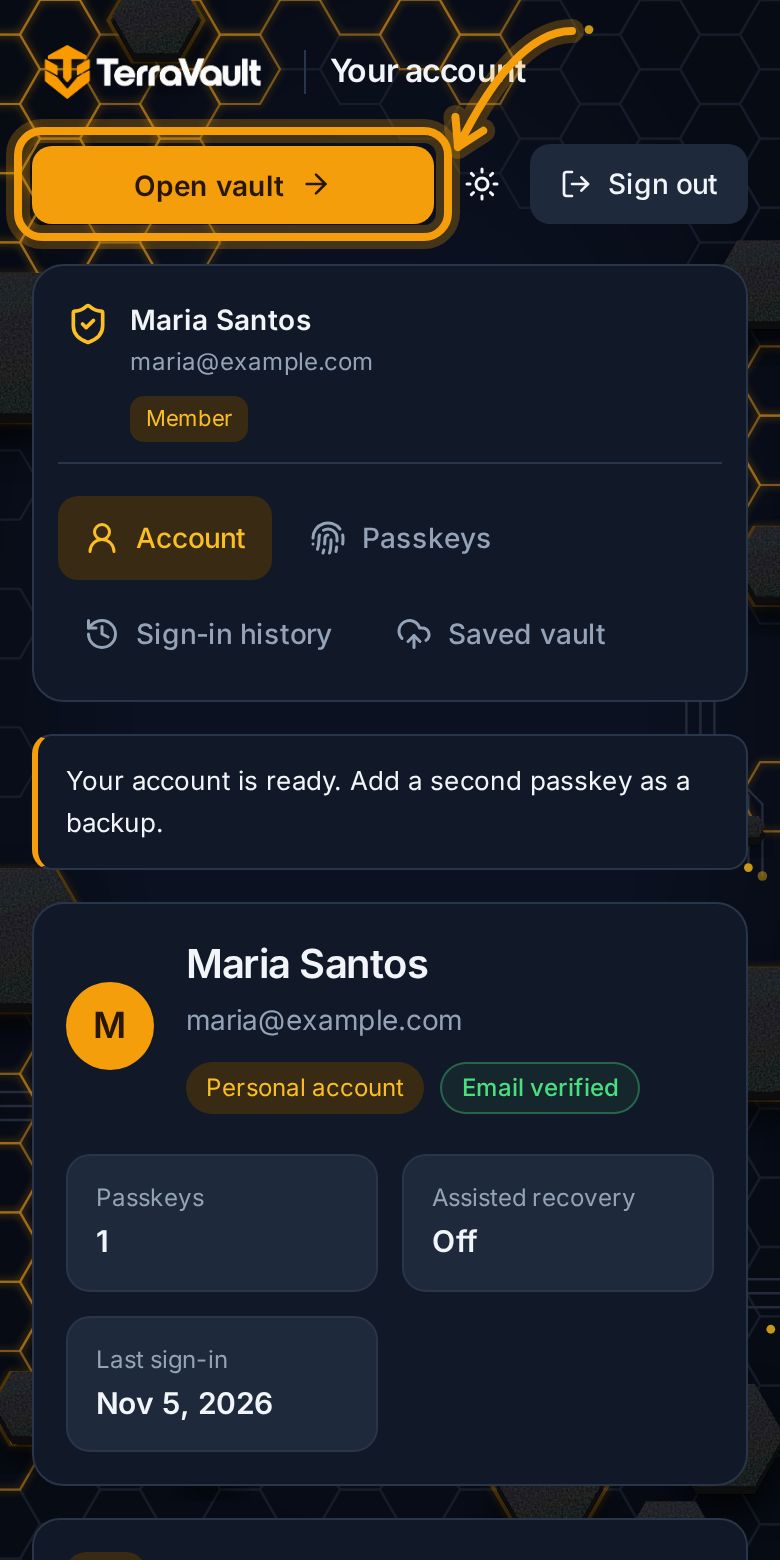
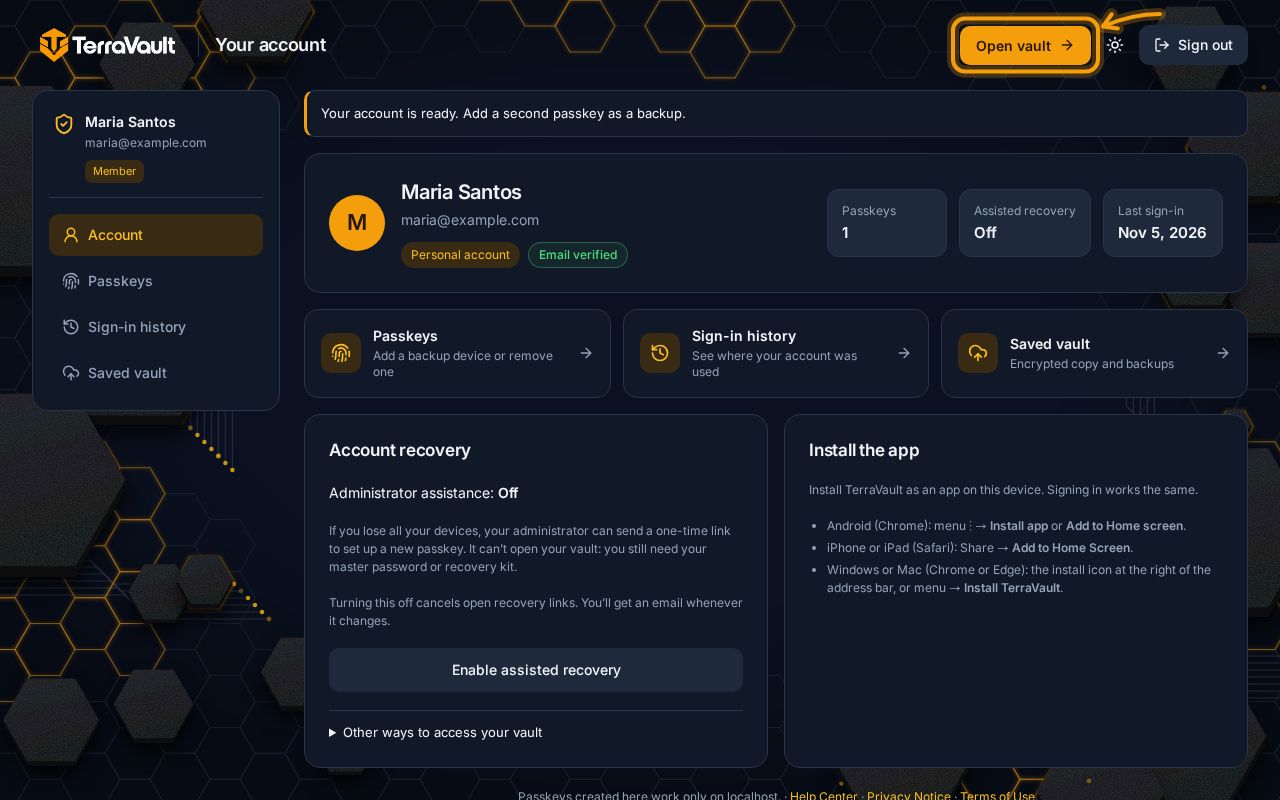
3. Create your vault and master password
Tap Open vault. Give your vault a name and choose a master password. It opens your vault, so pick something you can remember but nobody can guess. A few unrelated words work well, like mango jeepney blue rice.
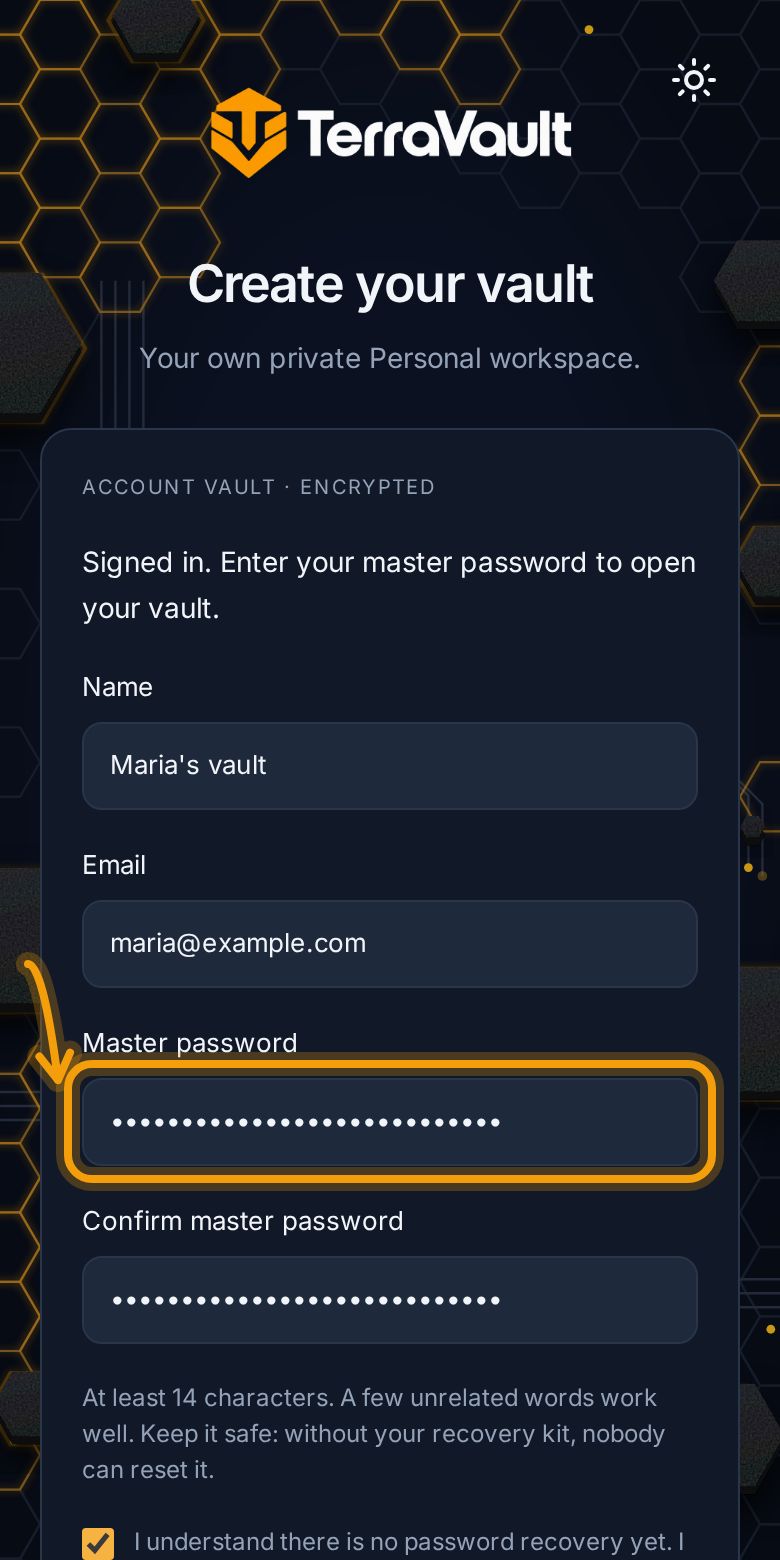
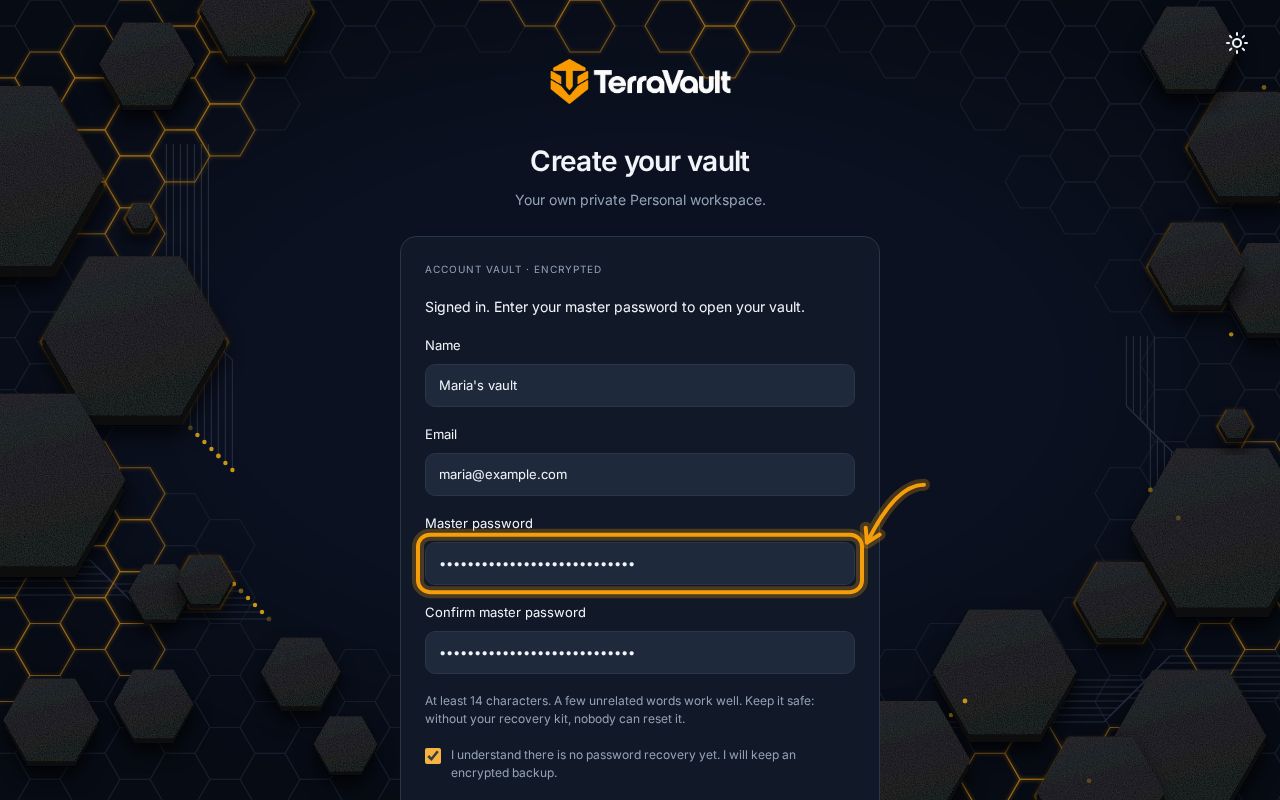
Nobody can reset your master password, not even us. That's what keeps your vault private. The next steps make sure you never get locked out.
4. Follow the setup guide
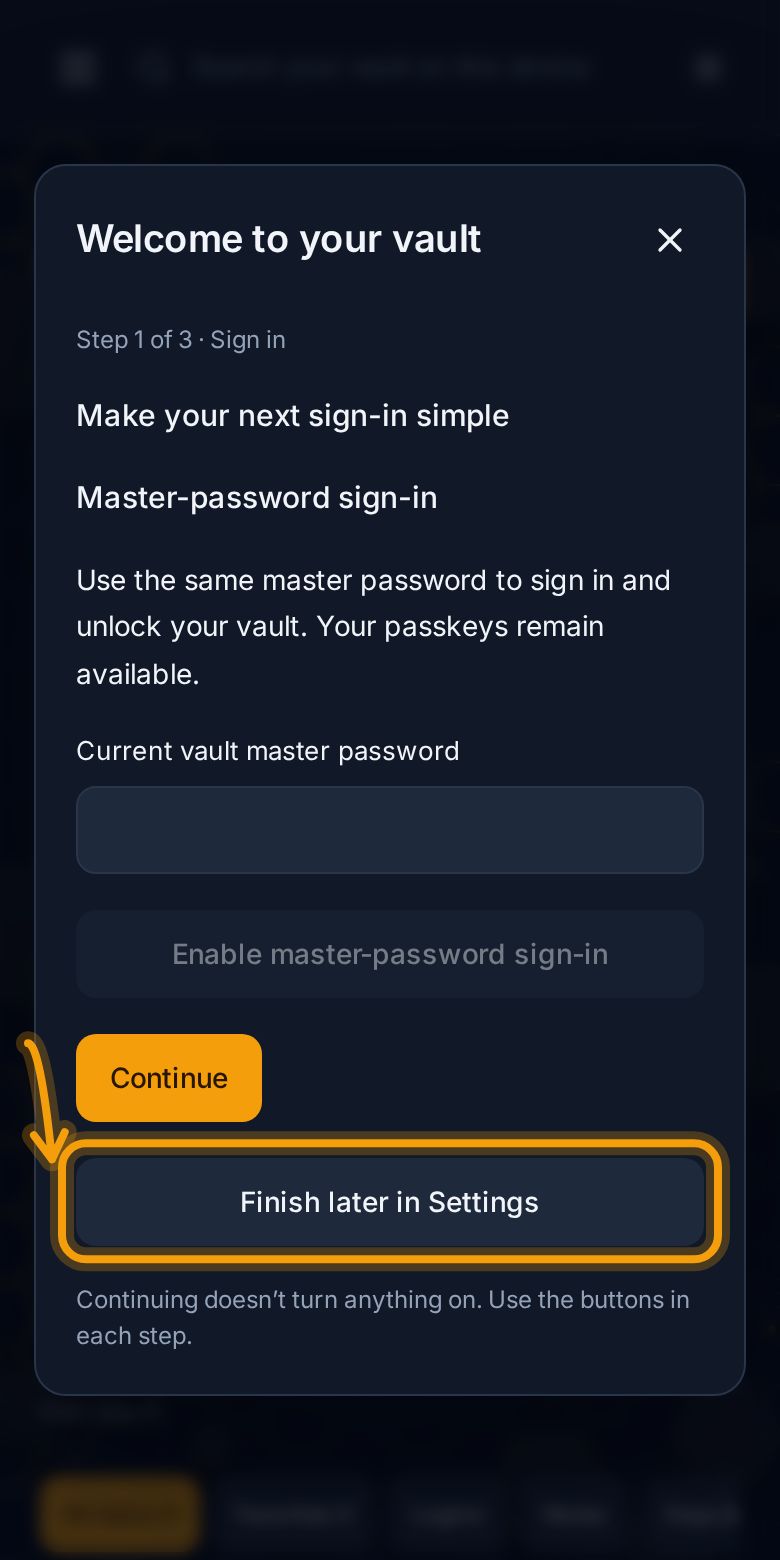
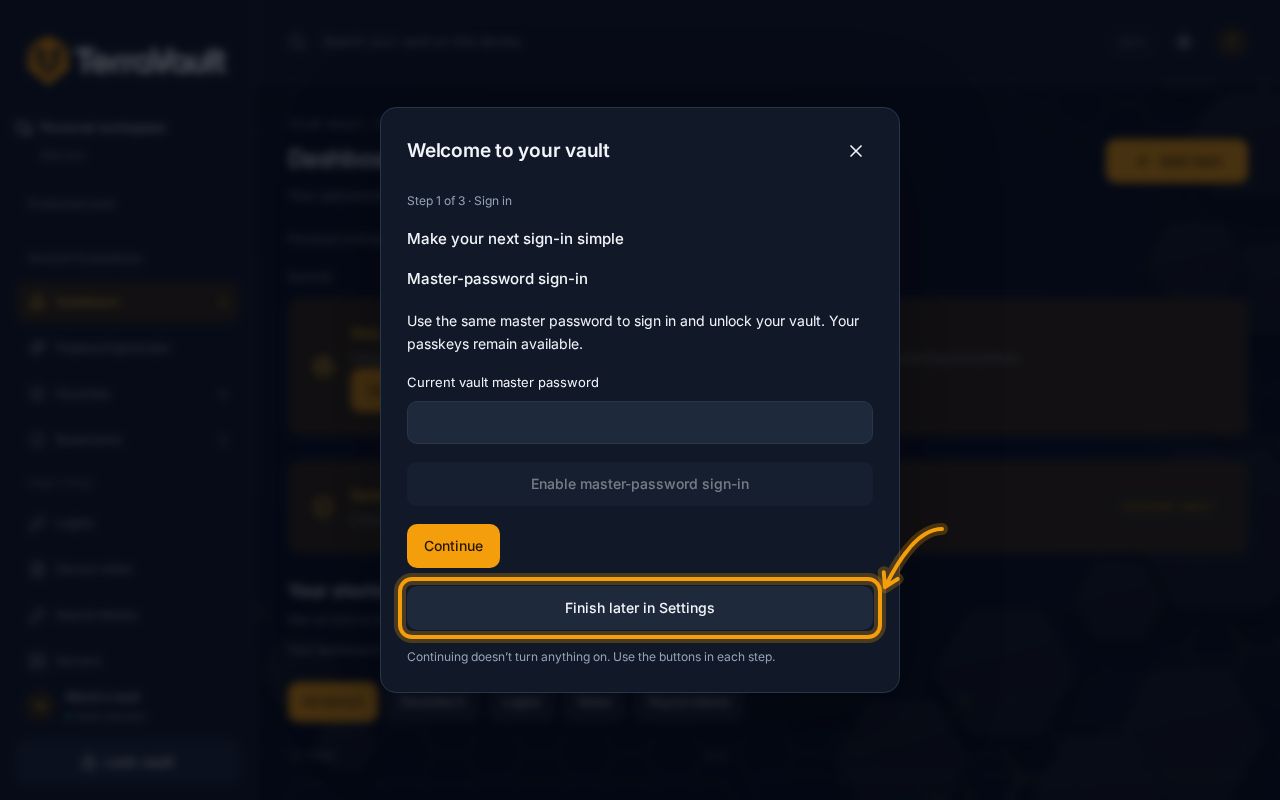
TerraVault shows a short guide. You can finish it now or later in Settings.
5. Save your first password
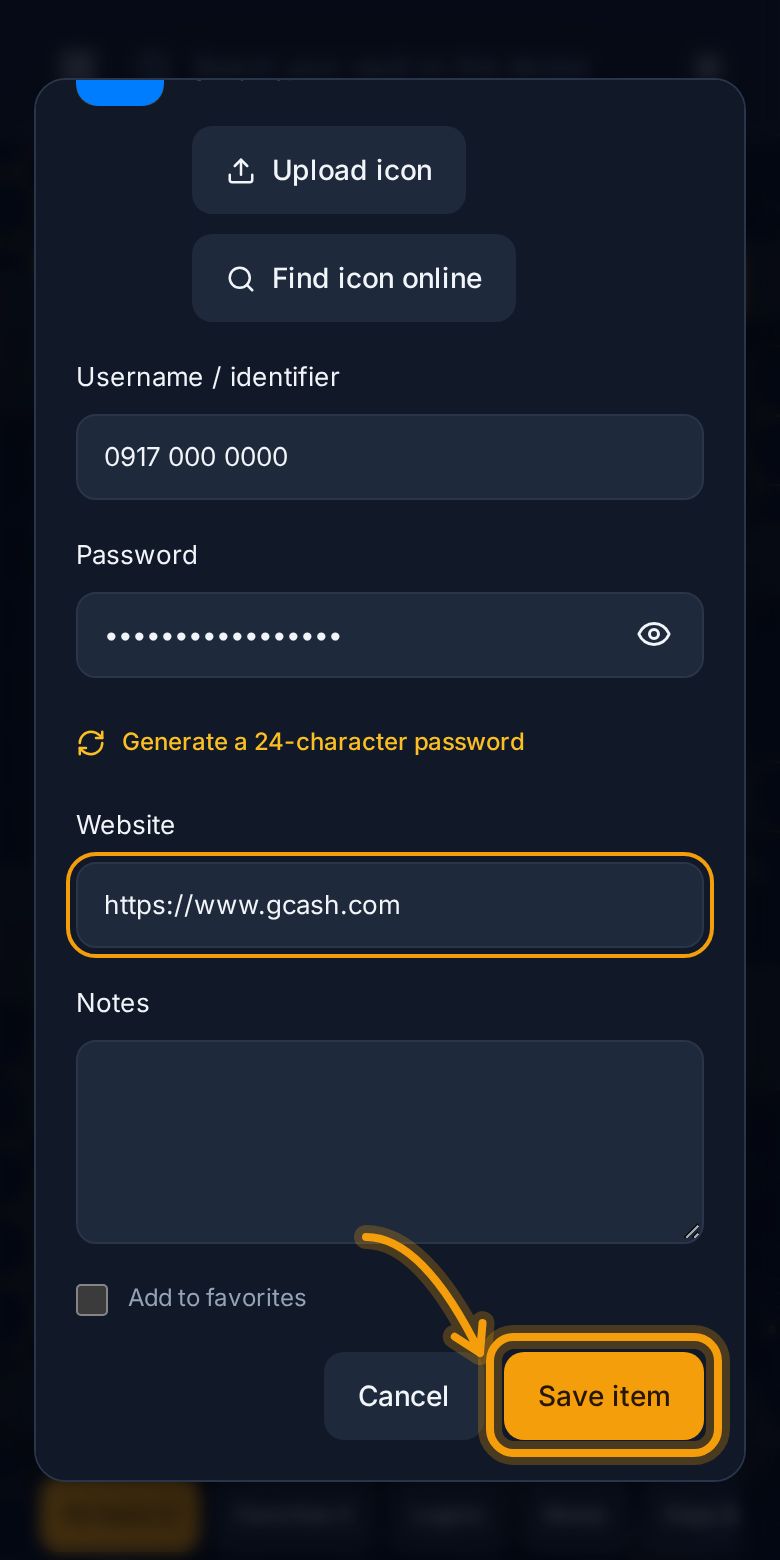
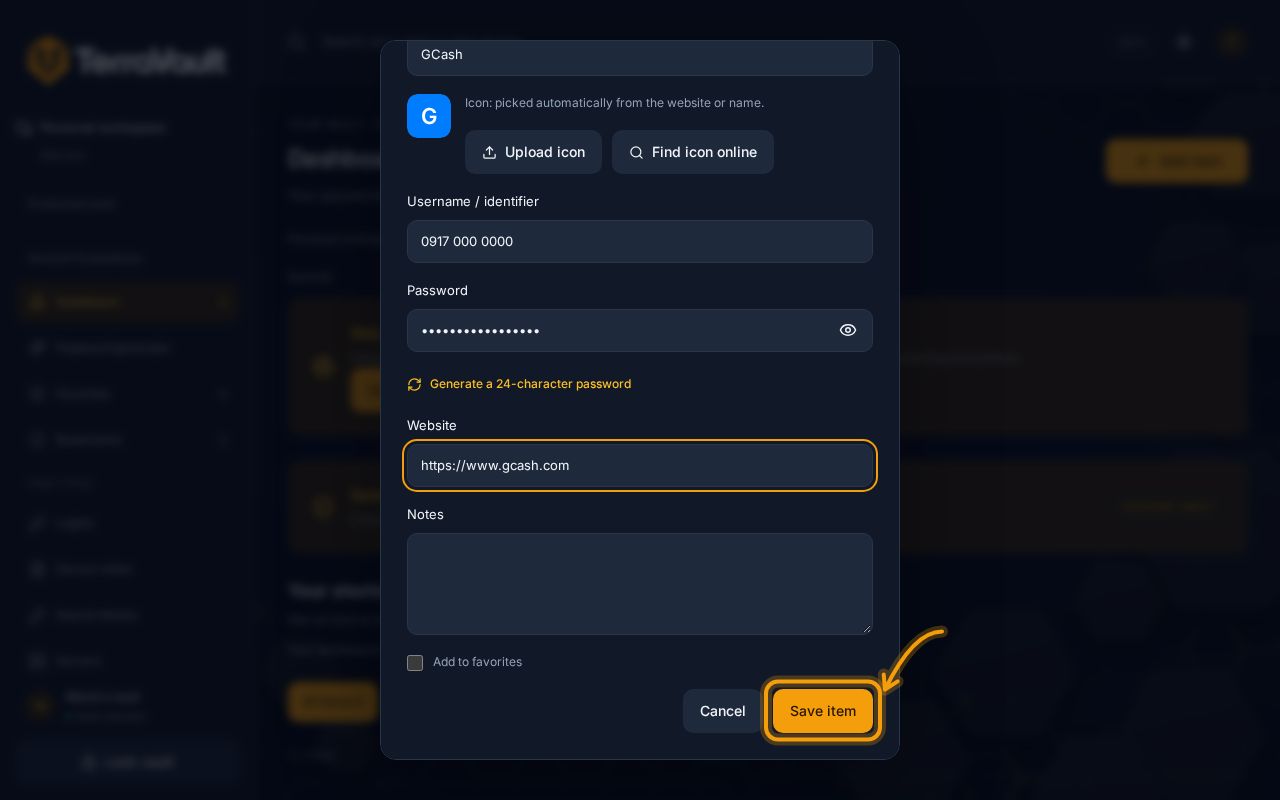
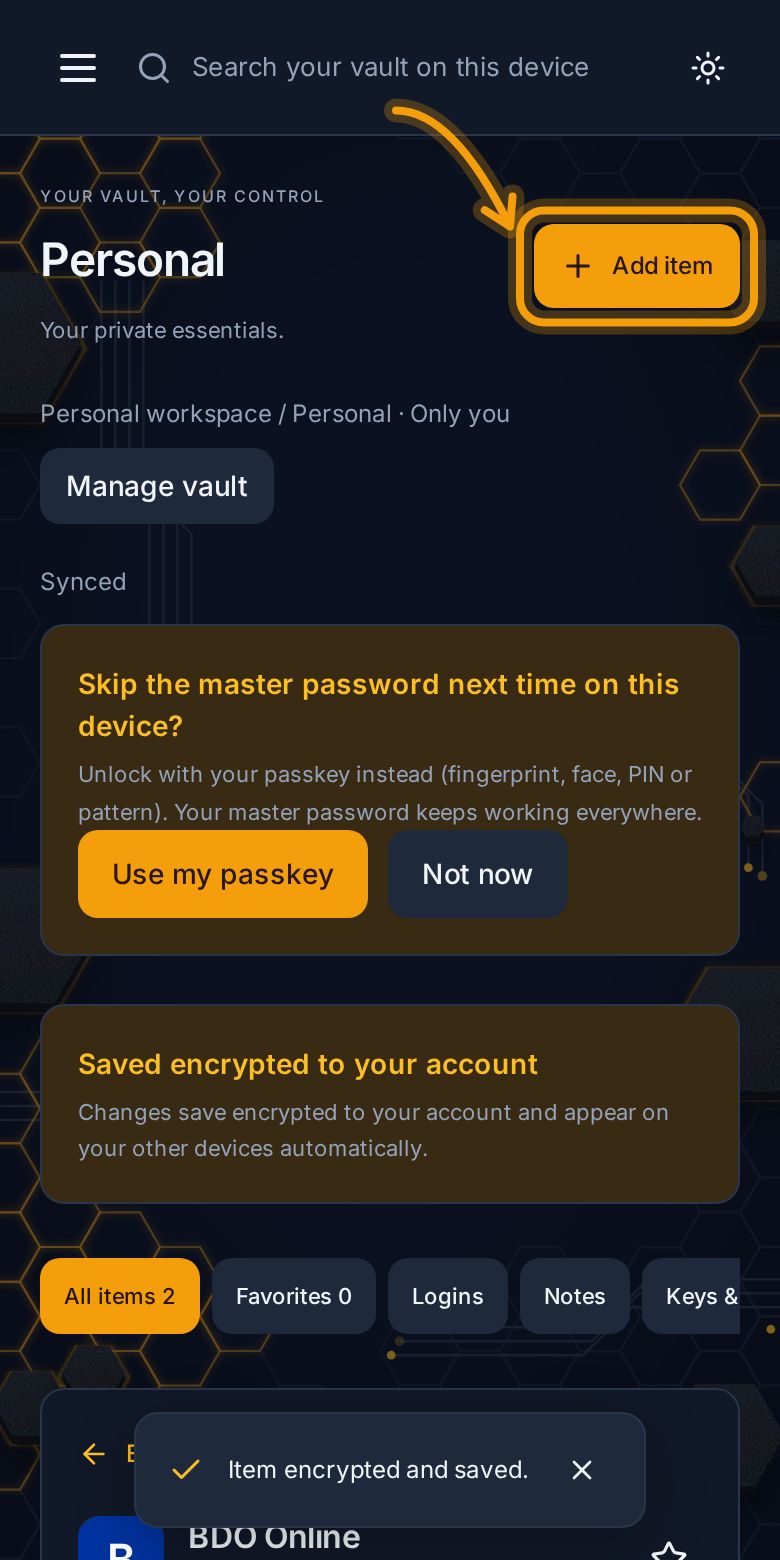
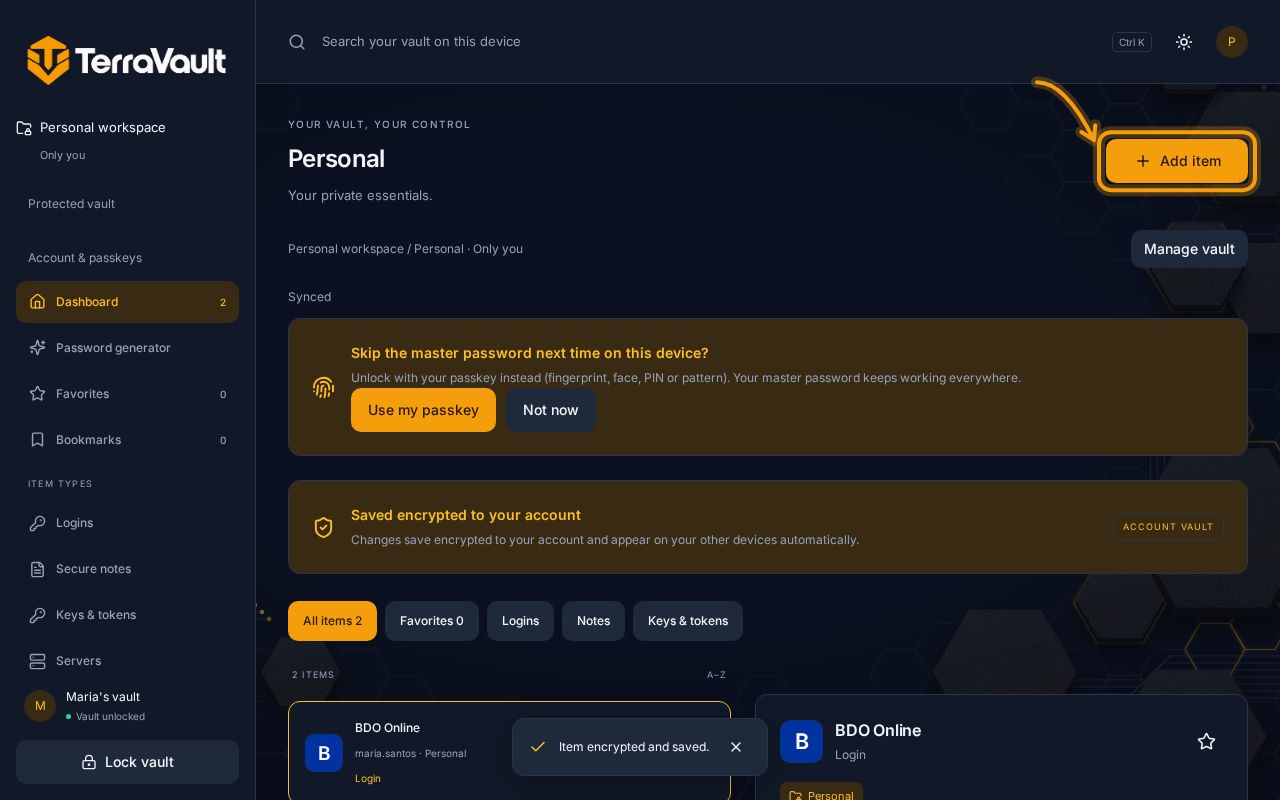
Tap Add item, fill in the name, username and password, then Save item. Everything is encrypted on your device before it's saved.
6. Before you store anything important
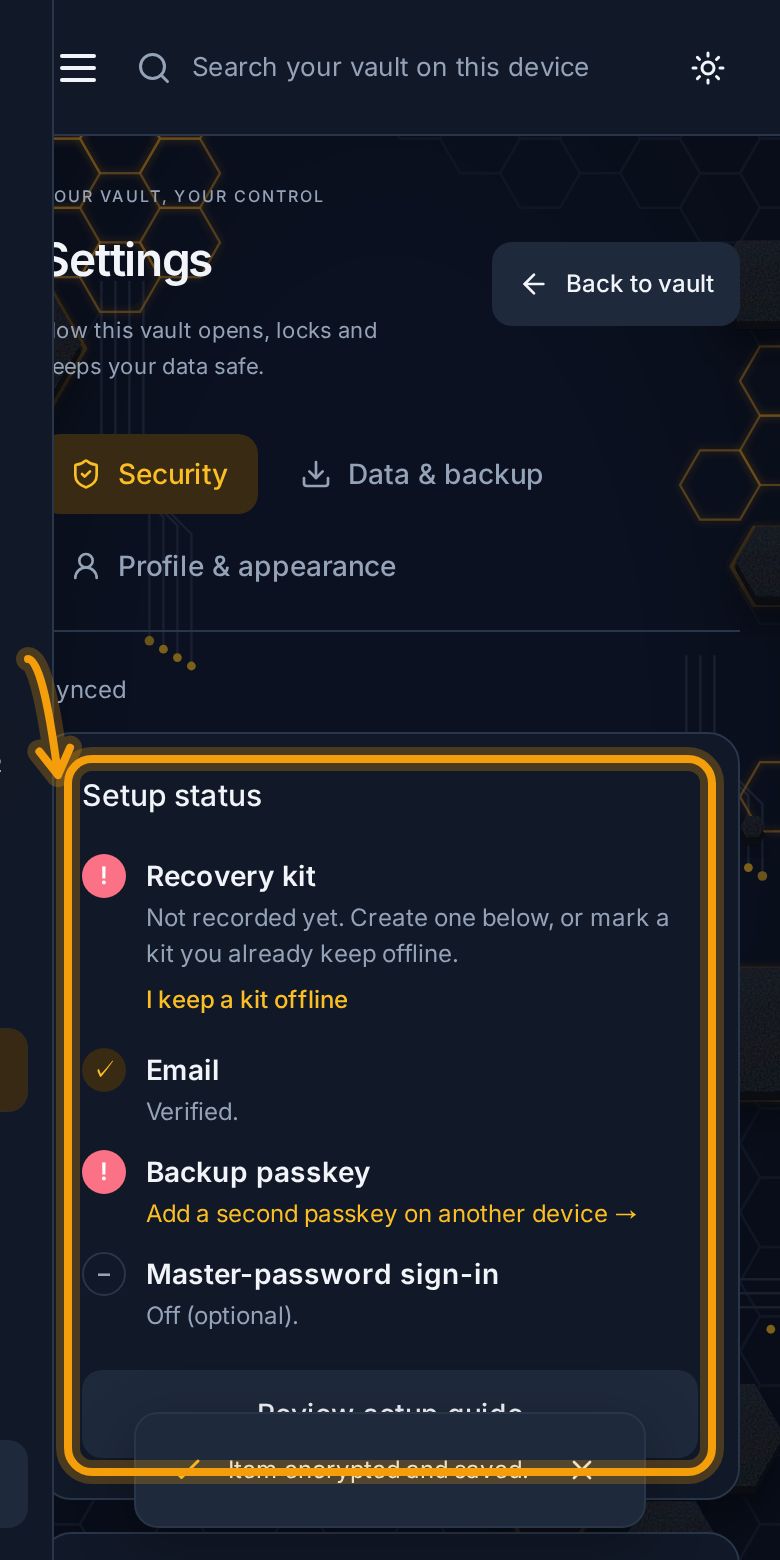
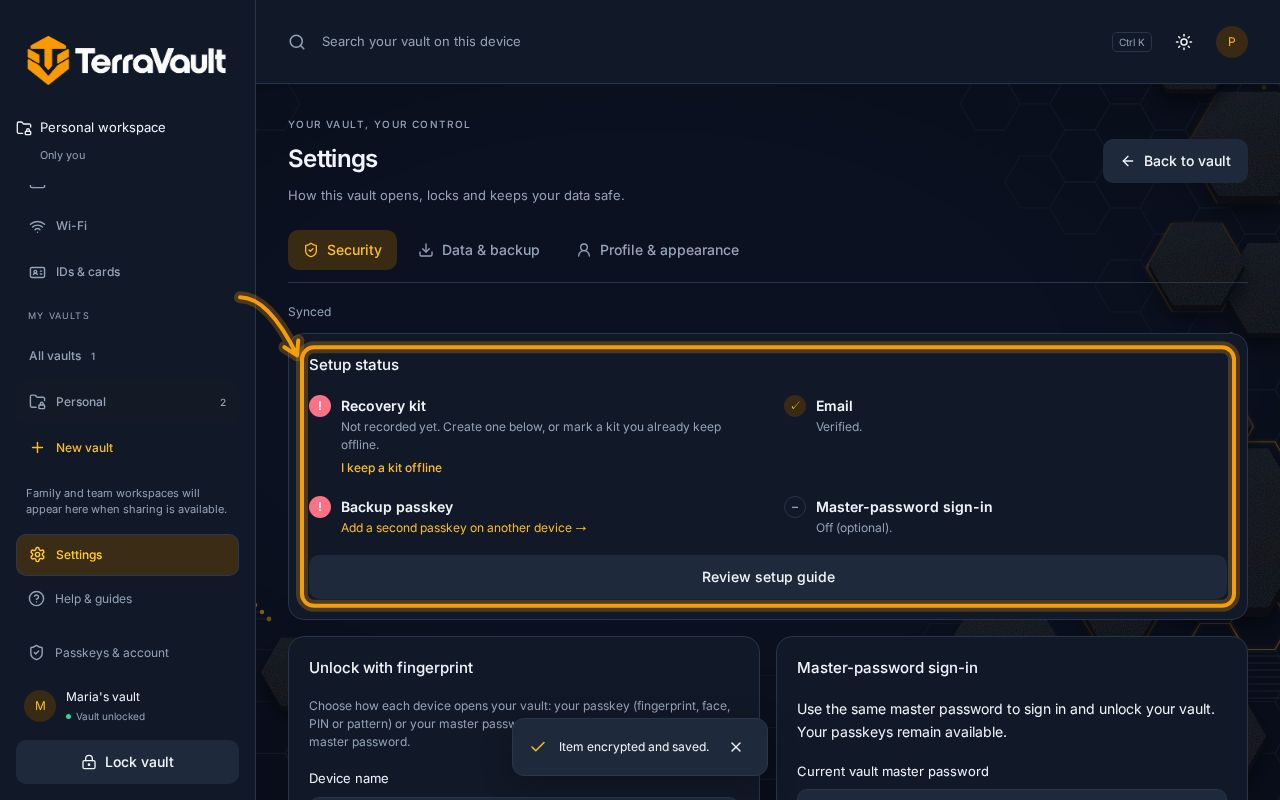
- Create your recovery kit and keep it somewhere safe and offline. See Your recovery kit.
- Add a second passkey on another device (a laptop, tablet or second phone). See Passkeys.
- Optional: turn on fingerprint unlock so you don't have to type your master password every time. See Open your vault with your fingerprint.
Settings shows a checklist of what's done: