

Open your vault with your fingerprint
Skip typing your master password on devices you trust.
Turn it on
The easy way: after you unlock with your master password on a new device, TerraVault asks Skip the master password next time on this device? Tap Use my passkey and confirm. That's it.
Or, any time:
- Open your vault, then Settings (the Security tab opens first).
- Under Unlock with fingerprint, type a device name and tap Turn on for this device.
- Confirm with your fingerprint, face, PIN or pattern.
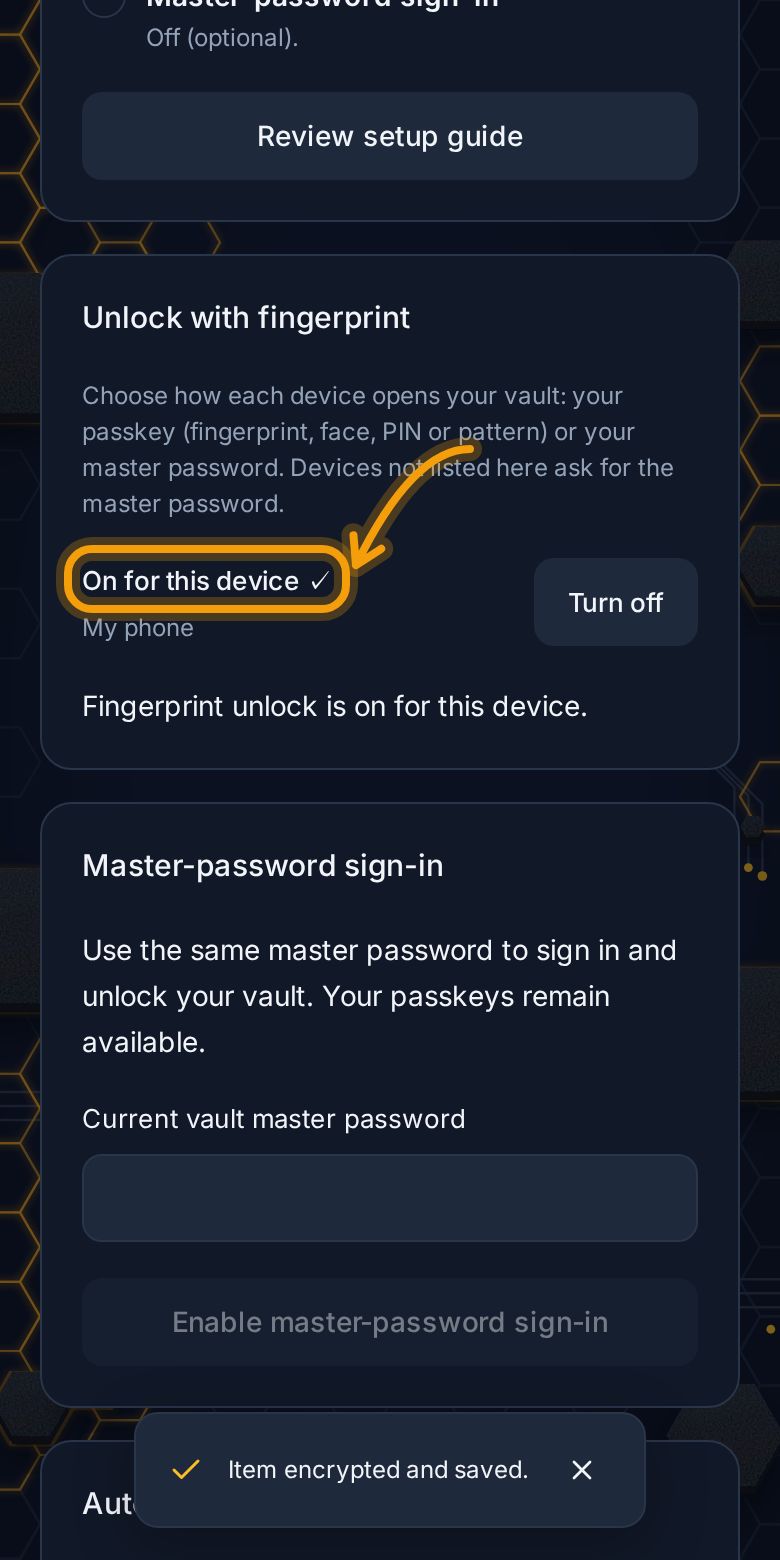
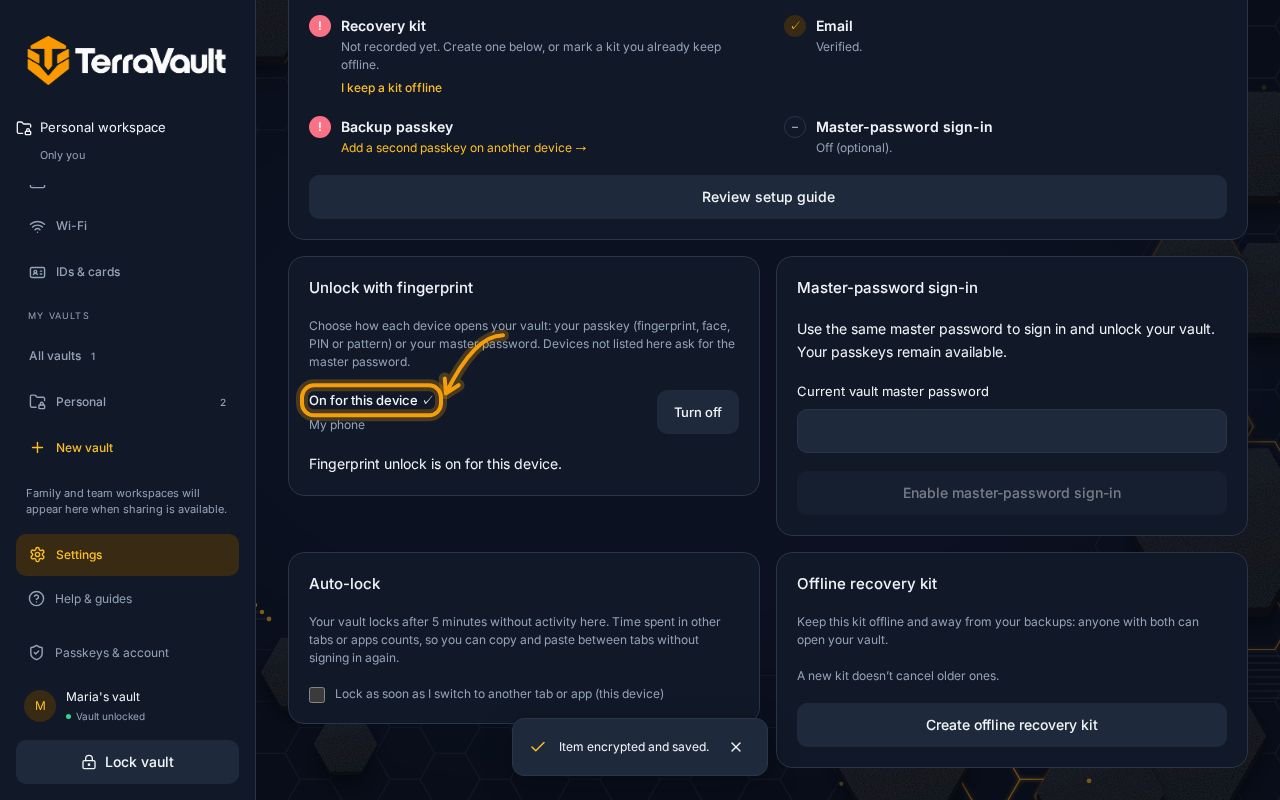
From then on, when you open TerraVault on that device, one fingerprint signs you in and opens your vault.
Good to know
- It's set per device. Turn it on separately on your phone and laptop.
- Your master password still works everywhere, and you need it on new devices.
- The secret that opens your vault stays on your device. It's never sent to TerraVault.
- When your vault locks itself (after 5 minutes without activity), it asks for your fingerprint again as soon as you come back.
- To stop, tap Turn off. That device will ask for your master password again.
"This passkey can't unlock your vault"?
Passkeys created before November 2026, and some password managers, don't support this. Add a new passkey on that device (see Passkeys) and try again. If it still isn't supported, keep using your master password.
Still stuck? Contact support.